
Recently Tetsuya and Michel shared some great examples of a new option in List formatting. You can now use a setValue action within List formatting.

 2. Insert the json below and click save.
Course Registration
One of the examples I have seen a lot on the Power Automate community is registration or sign-up in a SharePoint list. A lot of times a Power Automate flow would be needed to meet the requirements in these kind of scenarios. In this article I am going to show you can use the setValue action to meet most of your requirements without the need of building a flow. Assume we have the following requirements: – A user can register for one or several courses – A course has a number of available places, when all places are taken registration is not possible – There is a registration end date, after this registration is not possibleSharePoint Online list
First of all you would need to create the SharePoint Online list and the columns. To give you a head-start a create a PnP PowerShell script for this. Feel free to reuse it (at your own risk ;)).Change format Register column
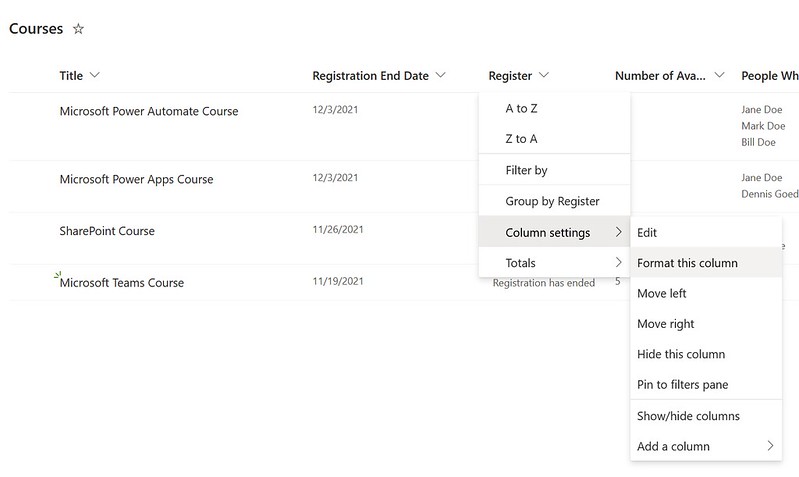
1. Navigate to your newly created list and click Column settings > Format this column.
2. Insert the json below and click save.





thanks a lot / very usefull and well documented
How do you lock down the list so they can only press the button and not go in and edit anything else?? I tried read only, but that doesnt let them click the register button.
If anyone would like to have a – (minus) button that unregisters as well, I was able to replace the JSON child of “Already Registered” with this:
{
“elmType”: “div”,
“style”: {
“display”: “=if(indexOf([$PeopleWhoRegistered.email], @me) == -1, ‘none’,’inherit’)”,
“flex-directon”: “row”,
“justify-content”: “left”,
“align-items”: “center”,
“flex-wrap”: “wrap”
},
“children”: [
{
“elmType”: “button”,
“customRowAction”: {
“action”: “setValue”,
“actionInput”: {
“Text”: “Update”,
“PeopleWhoRegistered”: “=removeFrom([$PeopleWhoRegistered], @me)”
}
},
“attributes”: {
“class”: “ms-fontColor-themePrimary ms-fontColor-themeDarker–hover”
},
“style”: {
“border”: “none”,
“background-color”: “transparent”,
“cursor”: “pointer”,
“display”: “flex”,
“flex-directon”: “row”,
“justify-content”: “left”,
“align-items”: “center”,
“flex-wrap”: “wrap”
},
“children”: [
{
“elmType”: “span”,
“attributes”: {
“iconName”: “SkypeCircleMinus”
},
“style”: {
“padding”: “0px”
}
}
]
}
]
},
Hopefully this helps someone.
Hi Keith,
Thanks for sharing that unregister JSON. I will definitely try that out myself!
Hi Dennis,
I really like the solution that you showcase here. I found it in the in the pnp git hub pages.
When trying to build something with the solution I stumbled across one challenge:
When using the proposed approach, the column with the participant names needs to be visible in the list. I would like to remove it – do you know of any solution for that?
I found one trick to use a conditional formula, but this cannot reference to a multiple selections column.
Would be happy to know your thoughts.