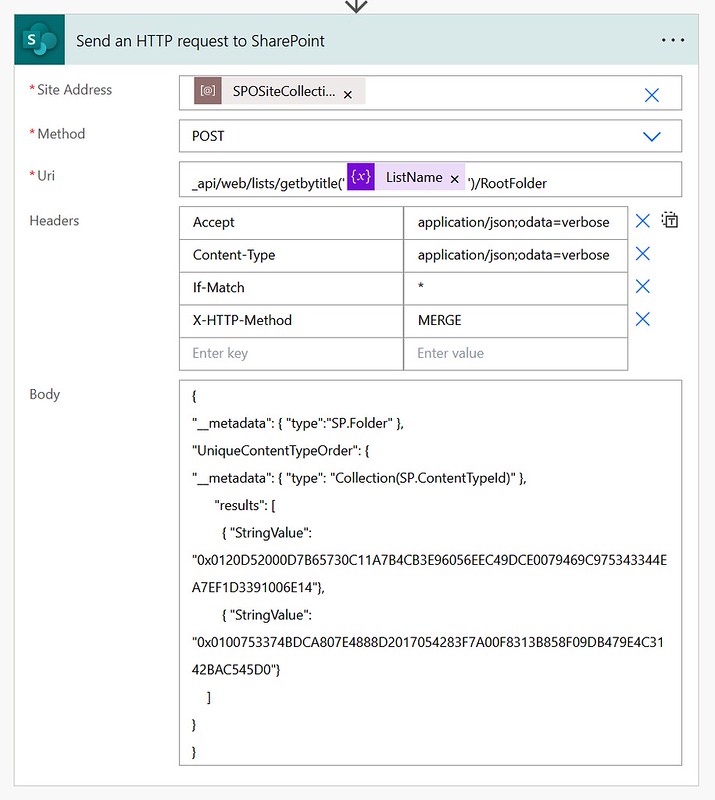
How to set a Header Image in an Extended Layout on a SharePoint Online Team Site in a Power Automate flow.
This sample uses an image which has already been uploaded to the Site Assets library of the same site.
URI
Headers
Body
Screenshot with example
Below are a bit more details about the values used in this example. Hopefully that helps in configuring the right body payload.
| Property | Value | Details |
|---|---|---|
| aspect | 0 | |
| relativeLogoUrl | %2Fsites%2FChangetheLook-TeamSite%2FSiteAssets%2Fexamplebackground.png | |
| Site Address | https://contoso.sharepoint.com/sites/ChangetheLook-TeamSite | Variable used in the Site Address |
| type | 2 |

Expected response
Will return a HTTP 200 response.
Copy/paste example
Resources
Change the look of your SharePoint siteThat’s it, Happy testing!